
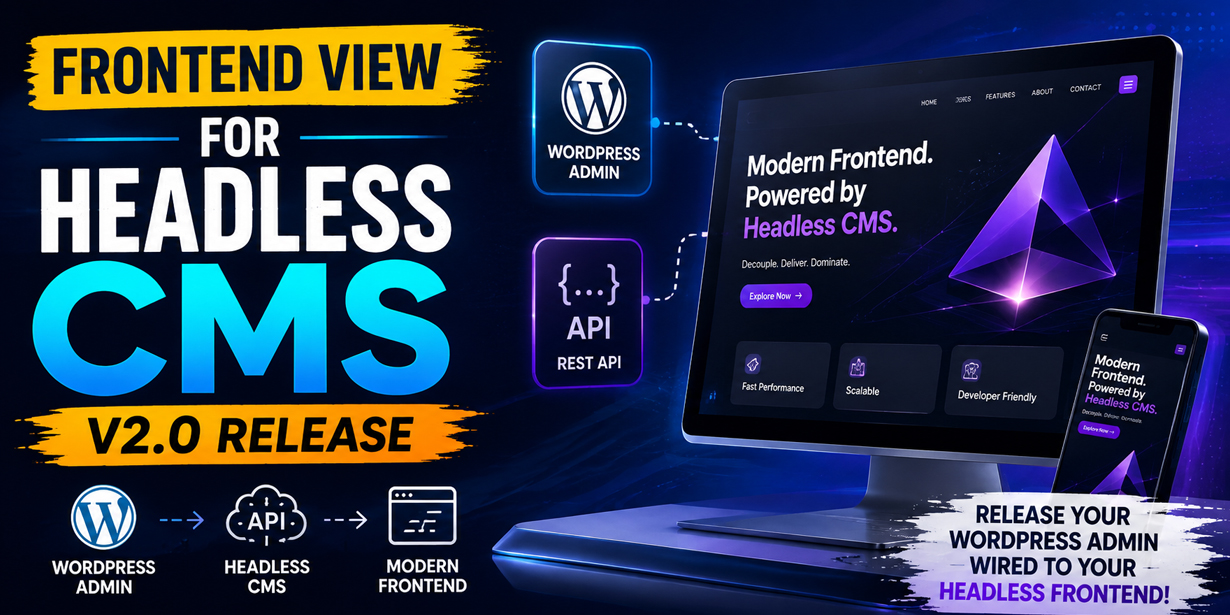
Today we’re shipping version 2.0 of Frontend View For Headless CMS—a major release built around one idea: make wp-admin feel like it’s connected to your frontend, without hijacking your public WordPress URLs.
If you run WordPress as the content backend for a headless site, Next.js, Nuxt, Gatsby, Astro, or anything else—you already know the friction: editors live in wp-admin, but the real site lives somewhere else. Clicking View on a post still points at your WordPress URL. Preview links don’t match your frontend routes. Custom post types and taxonomies rarely line up one-to-one with how your app is structured. Frontend View For Headless CMS v2.0 is your answer.
What changed in 2.0 (and why it matters)
In earlier versions, the plugin redirected visitors from WordPress front-end URLs to your headless site. That worked for some setups, but it could surprise teams who still needed WordPress URLs for APIs, legacy paths, or mixed architectures.
2.0 takes a cleaner approach: it rewrites links inside wp-admin so editors always land on the right frontend URL, without forcing 301 redirects on your public WordPress site.
That means:
- View on posts, pages, and custom post types opens your frontend.
- View on taxonomies, categories, and users does the same.
- The admin bar Visit Site and site title link go to your configured frontend home.
- Links open in a new tab, so editors keep their WordPress session open while checking the live site.
If you’ve been waiting for a headless workflow that respects both WordPress and your frontend, this is the release we built for you.
Redesigned settings experience
The Frontend View Settings page has been rebuilt from the ground up: clearer layout, inline help, a quick-start guide, and links to support and reviews. You’ll also find a Settings shortcut right on the Plugins screen—no more hunting through menus.
Slug mapping that matches your routes
Your Next.js app probably doesn’t use WordPress’s default rewrite slugs. 2.0 lets you align paths without touching code:
- Author slug — map WordPress author archives to your frontend segment (e.g. author → team).
- Per-taxonomy overrides — rename category/tag bases to match your router.
- Per–post-type overrides — do the same for custom post types.
- Empty slug — strip a taxonomy or CPT base entirely so /products/my-item/ becomes /my-item/ when your frontend uses flat routes.
Flexible preview paths
Draft and preview links can use a custom path segment (default /preview/, or whatever your app expects, e.g. /draft/post-slug/). Toggle it on only when you need it.
Safer editing workflow
Every rewritten frontend link in admin gets target=”_blank” and rel=”noopener noreferrer”. Check the live page, then jump straight back to the editor.
Bug fix: redirection issues resolved
We addressed redirection problems reported in earlier releases as part of this architectural shift—admin link rewriting is now the primary, predictable behavior.
Who is this for?
Frontend View For Headless CMS is for teams who:
- Use WordPress for content and a JavaScript framework (or static site) for the public site.
- Pull data via REST API, GraphQL, or a custom layer.
- Want editors to preview and verify content on the real frontend from familiar WordPress list and edit screens.
It does not replace your frontend, your routing, or your build pipeline. It connects the dots between WordPress admin and the URLs you’ve already built on the other side.
Works with WordPress 5.0+, tested up to 6.9, and requires PHP 7.2+. Multisite is supported—configure the frontend URL per site as needed.
Get started in under a minute
- Install or update from the WordPress Plugin Directory.
- Go to Frontend View Settings (or Plugins → Settings on the plugin row).
- Enter your frontend URL—e.g. https://www.yoursite.com (no trailing slash).
- Optionally map slugs, enable custom preview paths, and set Empty slug where your routes need it.
- Open any post list, click View, and confirm it opens your headless site in a new tab.
That’s it. No theme changes. No frontend deploy required for basic setup.
Upgrading from 1.x?
Version 2.0 is a major update. After upgrading:
- Re-check your frontend URL in settings—it’s still the foundation of every rewritten link.
- Review slug mapping if your frontend uses custom paths for CPTs, taxonomies, or authors.
- Note the behavior change: public WordPress URLs are no longer redirected to your frontend by default; link rewriting happens in wp-admin instead. If you relied on front-end redirects, plan your routing accordingly (or reach out—we’re happy to help).
Most sites will feel an immediate improvement: editors click View and see the site they actually ship.
Part of the headless toolkit
2.0 sits alongside other Dropndot plugins built for decoupled WordPress:
- Content Revalidation Tracker — trigger secure on-demand revalidation when content changes (ideal for Next.js, Nuxt, Gatsby).
- Dropndot Post Subtitle — subtitles with Gutenberg, Classic Editor, REST, and GraphQL support.
Together, they help you ship headless sites without sacrificing the WordPress editorial experience.
Try 2.0 today
Frontend View For Headless CMS 2.0 is available now on WordPress.org.
If it saves your team a few confused clicks a day, we’d love to hear about it—leave a review on the plugin page or drop us a line at info@dropndot.com.Happy headless building,
The Dropndot Solutions team