
Dropndot Article Duplicator – WordPress Plugin
Dropndot Article Duplicator is a WordPress plugin developed by Dropndot Solutions for creating editable copies of posts, pages, and supported custom post types. It gives publishers, agencies, and multi-author sites a way to reuse existing content and layouts from the WordPress dashboard.
Editors can create a draft in one click or decide how a copy should be set up before it is created. Site administrators can configure which data carries over, give individual team members access, and track how copies were made.
WordPress Plugin Link: https://wordpress.org/plugins/dropndot-article-duplicator/
INSTALLATION PROCESS
Installation
The plugin requires WordPress 6.3 or later and PHP 7.4 or later.
- Download the plugin ZIP from WordPress.org and install it via Plugins → Add New → Upload Plugin. For manual installation, upload the extracted dropndot-article-duplicator folder to /wp-content/plugins/.
- Click Activate from the installation screen or the Plugins list.
- Go to Posts → All Posts, hover over a post you can duplicate, and click Duplicate. The same action is available in the list for other enabled content types.
- Open Article Duplicator → Settings to enable additional supported post types or change the defaults.
Configuration
General Settings – Set Your Duplication Defaults
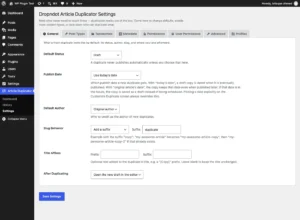
Go to Article Duplicator → Settings → General to choose the default status, publish date behavior, author, slug format, and title prefix or suffix. You can also choose where WordPress takes you after duplication. By default, a new copy opens in the editor as a draft. When the plugin generates a slug, it adds a number if needed to keep it unique.
Use Post Types to manage which content types can be duplicated. The Taxonomies and Metadata tabs control which categories, tags, custom taxonomy terms, and custom field values carry over. The plugin can copy ACF field values stored on supported posts. Its default safeguards block duplication of ACF field definitions and WooCommerce products, orders, and coupons.
One-Click and Bulk Duplication – Copy Content From the Posts List
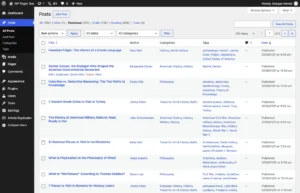
Hover over an eligible item in Posts → All Posts and select Duplicate beside Edit. WordPress creates a separate copy using your site defaults. You can also use Duplicate in the admin toolbar when viewing an eligible item.
To copy several source items, select their checkboxes and choose Bulk actions → Duplicate → Apply. This creates one copy per eligible item. The default batch limit is 50 items, and administrators can raise it to 200 under Article Duplicator → Settings → Advanced. The plugin guards against accidental repeat clicks and form resubmissions in the WordPress admin.
Customize Duplicate – Choose What the New Copy Includes
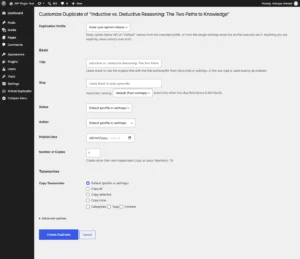
Open the original item in the WordPress editor and select Customize Duplicate… in the Dropndot Duplicator box. Set the title, slug, status, author, and publish date. Where available, you can choose a different content type or set a parent item.
Select the taxonomies you want to carry over. Expand Advanced options to edit the body or excerpt and control which individual metadata keys are copied. To create multiple independent copies of the same source, set Number of Copies and click Create Duplicate. The default limit is 10 copies per request, which administrators can adjust in Advanced settings.
Duplication Profiles – Save Presets for Recurring Work
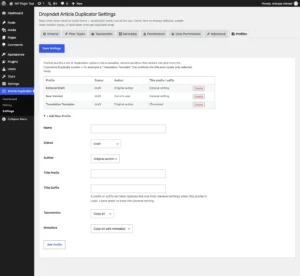
Under Article Duplicator → Settings → Profiles, select Add New Profile to save a named preset for status, author, title prefixes or suffixes, taxonomy handling, and metadata behavior. An Editorial Draft profile can keep the original author, while a Translation Template profile can add [Translate] to the title so the copy is easy to find.
Choose a preset from the Duplication Profile menu on the Customize Duplicate screen. Your explicit choices take priority. Fields left on Default draw from the selected profile where it defines a value, then fall back to site settings. The one-click and bulk actions use site settings.
Permissions – Set Rules for What Can Be Duplicated
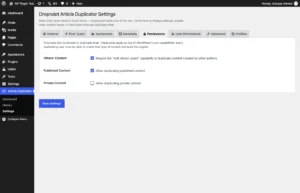
In Article Duplicator → Settings → Permissions, choose whether published and private content can be duplicated and whether users need the edit others’ posts capability to copy another author’s work. Users must also be able to read the original and create the relevant content type in WordPress.
User Permissions – Give Individual Team Members Access
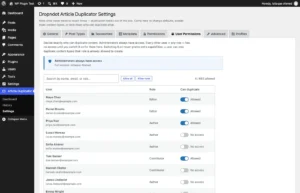
Administrators have access by default. To give another team member access, open Article Duplicator → Settings → User Permissions, find their account by name, email, or role, and turn on the Can duplicate switch. Click Save Settings to apply the change. The user’s existing WordPress capabilities still determine which types of content they can create and whether they can publish a copy.
Dashboard – Review Duplication Activity at a Glance
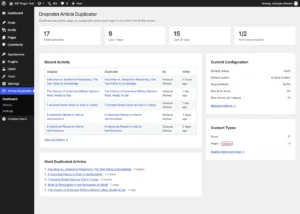
Open Article Duplicator → Dashboard to see total duplicates, activity over the past 7 and 30 days, and enabled post types. Recent Activity shows the source and copy side by side. The dashboard also highlights the most frequently copied articles and shows your default status, author, slug behavior, and duplication limits.
Duplication History – See Who Created Each Copy
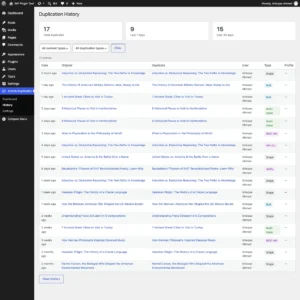
Go to Article Duplicator → History to see which item was copied, who created the copy, when it was made, and which duplication method or profile was used. Filter the log by content type or method, including single, bulk, multi-copy, REST API, WP-CLI, and Abilities API activity.
The log stores record IDs and event details locally in WordPress. The default retention period is 90 days. Administrators can change it under Article Duplicator → Settings → Advanced or clear the log from the History screen.
The stack behind the build.
A pragmatic set of tools chosen for speed, maintainability and long-term reliability.
WordPress PLUGIN STRATEGY
A publisher can start each edition of a recurring series from an approved article structure, then adapt the text and categories for the next topic. An agency can use a campaign page as the starting point for a regional version and assign the new draft to the editor responsible for it.
During an editorial handover, the Dropndot Duplicator box identifies the source for team members who can read it. If the draft has been renamed, a site administrator can also trace it back to the original through the history.
Have a project in mind?
Tell us about your goals and we'll come back within one business day with a plan, a team, and a realistic timeline.