
Dropndot Video Library – WordPress Plugin
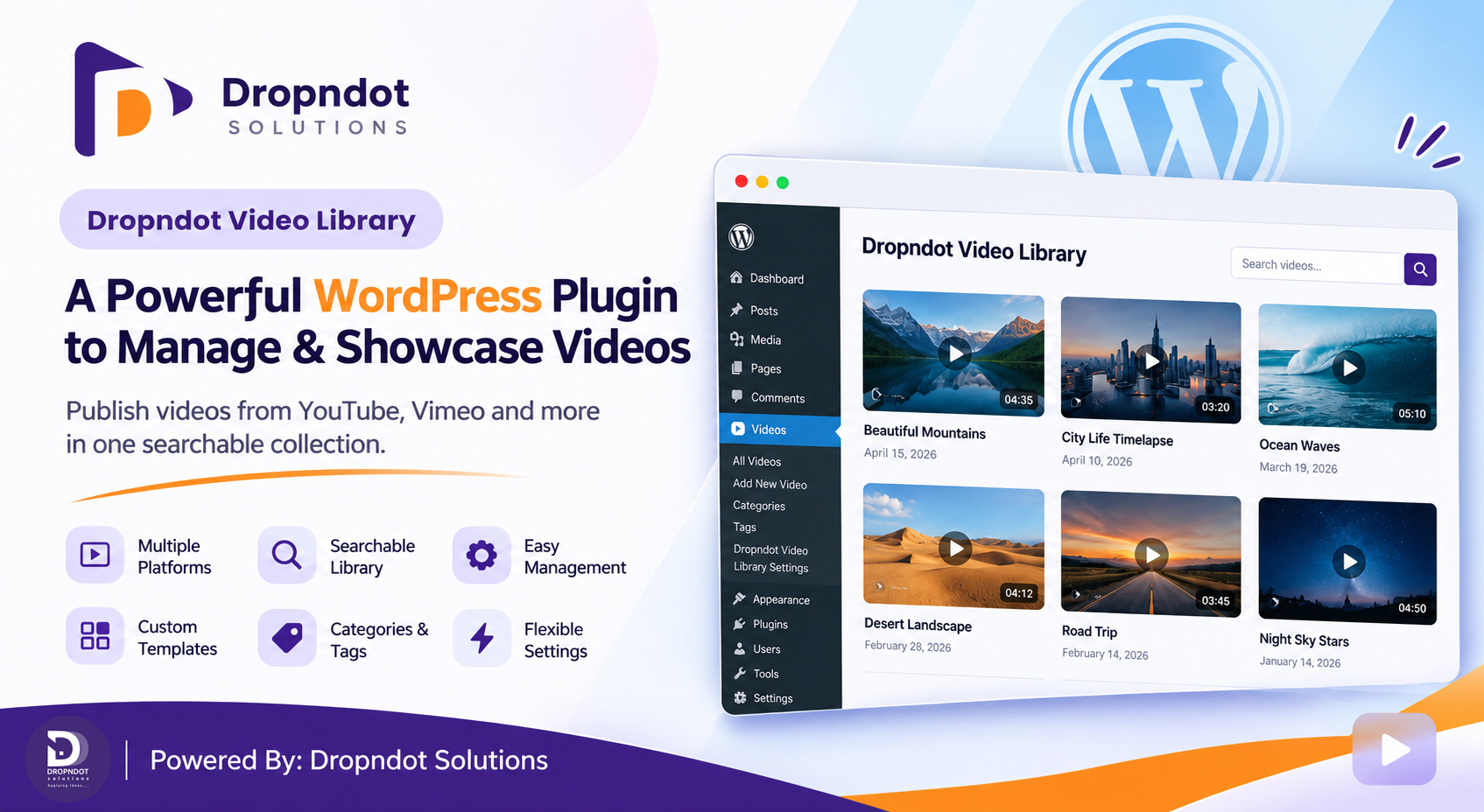
Dropndot Video Library is a WordPress plugin developed by Dropndot Solutions for publishing videos from different platforms in one searchable collection. A product demo hosted on YouTube and a training session hosted on Vimeo can sit side by side in the same archive, each with its own thumbnail, description, and page on your website.
Editors manage the collection through a dedicated Videos menu. They can paste a video link, check its preview, and organize it by category and tag. Site owners can choose how video URLs appear, while developers can adapt the included templates or use the same collection in a headless WordPress site.
WordPress Plugin Link: https://wordpress.org/plugins/dropndot-video-library/
INSTALLATION PROCESS
Installation
Dropndot Video Library version 1.0.0 requires WordPress 5.0 or later and PHP 7.4 or later.
- Download the plugin ZIP from WordPress.org, extract it, and upload the dropndot-video-library folder to /wp-content/plugins/.
- In the WordPress dashboard, open Plugins, find Dropndot Video Library, and click Activate.
- Open Videos → Add New Video to create your first entry.
- Open the plugin settings to configure your video URLs and display preferences. The installation guide lists this screen under Settings → Dropndot Video Library.
- Use the included templates for the video archive, individual videos, and category or tag pages. To match an existing site design, you can override these templates in your theme.
Configuration
Library Settings – Choose Your Video URLs and Play Icon
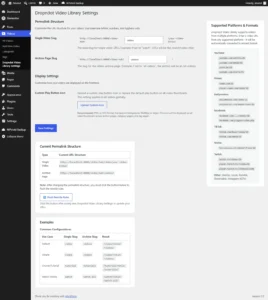
Open Videos → Dropdown Video Library Settings, as shown above. Single Video Slug controls the first part of each video’s URL, while Archive Page Slug sets the address of the collection. The defaults give you /video/your-video-title/ for an individual entry and /videos/ for the archive. For a tutorial library, you could use /tutorial/your-video-title/ and /tutorials/ instead.
Select Save Settings after editing the slugs, then click Flush Rewrite Rules so WordPress recognizes the new addresses. Under Display Settings, you can also upload a custom play icon. The same icon appears on video thumbnails across the main archive, category pages, and tag pages.
All Videos – Manage Your Published Collection
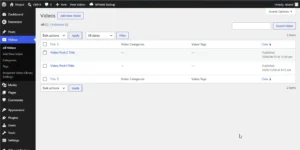
Go to Videos → All Videos to review the collection. The list shows each video’s title, categories, tags, and publication date. Search for a title to reopen an existing entry, filter by date to find a recent upload, or select several entries for a bulk action.
Use Videos → Categories for broad subjects such as Product Tutorials or Webinars. Tags can describe details that cut across those subjects, such as a product name or a speaker. A recording can then appear alongside other videos on the same topic, even when they come from different hosting platforms.
Add New Video – Turn a Video Link into a WordPress Entry
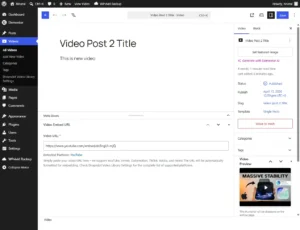
Select Videos → Add New Video, enter a title, and write the description you want visitors to see beneath the player. Paste a supported link into the Video URL field inside the Video Embed URL panel. The plugin recognizes supported URL formats and prepares the embed. In the example above, the editor identifies YouTube and shows the thumbnail in Video Preview.
You can also add videos from Vimeo, Dailymotion, Facebook, TikTok, and other supported providers. The settings screen lists the accepted link formats. Before publishing, assign the relevant categories and tags, then check the preview or set a featured image for the video thumbnail.
Video Archive – Browse the Collection by Thumbnail
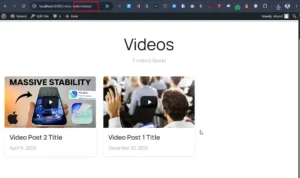
Open /videos/or the archive address you chose in settings to see the collection as a visitor sees it. The archive displays the number of videos above a grid of cards. Each card pairs a thumbnail and play icon with the video title and publication date.
Selecting a card opens that video’s page. Visitors can also browse a narrower collection through a video category or tag archive, such as all recordings in a webinar series.
Single Video Page – Watch a Video and Find the Next One
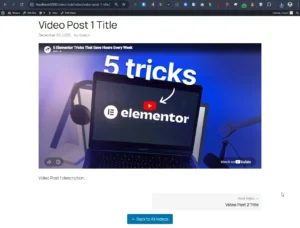
Each published video has its own shareable WordPress URL. The included single-video template places the title, publication date, and author above the embedded player, followed by the description. For a product walkthrough, that gives an editor a natural place to name the feature being demonstrated or explain which step the viewer should try next.
Below the description, visitors can follow the Next Video link when another entry is available. Back to All Videos returns them to the archive, where they can choose a different recording.
The stack behind the build.
A pragmatic set of tools chosen for speed, maintainability and long-term reliability.
WordPress PLUGIN STRATEGY
A software company can give customers one place to find product walkthroughs, even if its marketing team publishes on YouTube and its trainers use Vimeo. Editors can group recordings by product, tag them by feature, and share a direct link to the relevant video in a support reply. Customers who need more context can open the archive and continue browsing.
A training provider can build its library around the language learners already use. With /tutorials/ as the archive and a category for each subject, the team can point learners to a single lesson or an entire topic. If the provider later builds a separate learning portal, its developers can draw on the same WordPress entries through the REST API or WPGraphQL.
Have a project in mind?
Tell us about your goals and we'll come back within one business day with a plan, a team, and a realistic timeline.