
Sales closes a deal on Monday. Operations retypes the order on Tuesday. By Friday, someone in finance is trying to figure out why the invoice shows a different quantity from the shipment. The systems may all be working as configured. The handoffs are where the problems start.
To integrate the three systems, pick one workflow, decide which application owns each record, and agree on what should trigger the next step. A first CRM-ERP integration might send an approved deal to operations as a sales order, pass fulfilled quantities to accounting for invoicing, and return the invoice balance to sales.
Start with an order your teams recognize, including a change they regularly handle, such as a split shipment or partial payment. Trace it from the customer’s account through to the final balance. That exercise tells you what data needs to move, who can correct it, and what to test before you automate the handoff.
1. Define what your CRM-ERP integration should do
A CRM (customer relationship management system) tracks prospects, deals, and customer interactions. An ERP (enterprise resource planning system) manages operations such as sales orders, inventory, and fulfillment. In the setup below, separate accounting software owns invoices, payments, and the ledger. If your ERP already houses the official ledger, have finance define a single posting path and decide whether the other tool only needs a reporting export.
Choose a system of record, meaning the application authorized to change a given record or field. This is one way to divide ownership for a CRM-ERP integration with a separate accounting system.
| Record or field | System that owns it | What the other teams receive |
| Sales contact and deal stage | CRM | Approved deal and contact details go to the ERP. |
| Product code and available stock | ERP | Sales receives the product code and stock status where needed. |
| Order and shipment status | ERP | Sales sees fulfillment status. Accounting receives billable quantities. |
| Billing profile and payment terms | Accounting | Operations and sales reference the approved billing details. |
| Invoice number and open balance | Accounting | Sales sees the invoice status and outstanding amount. |
Assign a person to each exception, too. For example, finance can resolve a billing entity mismatch while sales corrects a contact record. If you bill by project, add the project code to the handoff. For an example of how projects, payment schedules, and invoices fit together in one application, see Dropndot’s project-based accounting software portfolio.
2. Map the fields your CRM-ERP integration needs
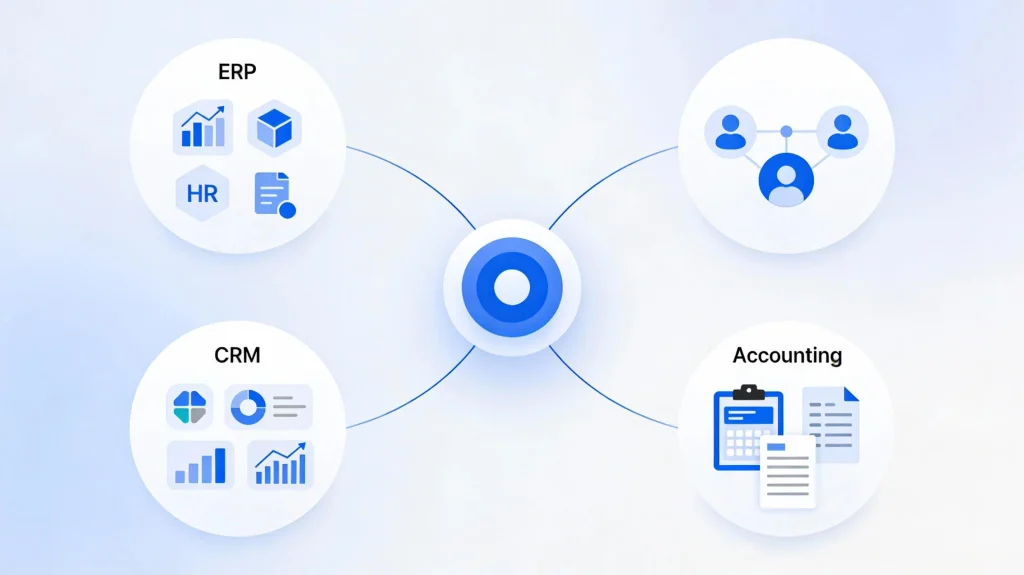
Create a mapping sheet with the source field, destination field, required format, and rule for missing values. A deal’s account ID may point to a different billing customer ID in accounting. Keep a cross-reference between system IDs so the link survives a company name change. If you operate across multiple legal entities, include the entity in the match.
Map order lines as carefully as customer records. A product code, unit of measure, currency, and quantity can all change the amount that gets billed. Document how you handle discounts and rounding, which system calculates tax, and what happens when a required value is missing. A blank product code should send the order to review with a message someone can act on.
Be explicit about blank fields. If a CRM update arrives with a blank billing email and accounting already has a verified one, preserve the accounting value. Test the mapping on a small batch and ask the record owners to confirm what they see in each application.
Before activating the CRM-ERP integration, match active customers and agree on which open orders and invoices need to be included. Resolve ambiguous matches with the record owner. Decide where older records will be available for reference. For a platform move that includes post-migration data quality checks, explore Dropndot’s data migration services.
3. Choose a connection method and sync schedule
Evaluate each CRM-ERP integration option using one real workflow and your actual product editions. Check which records the integration can create or update, whether it supports custom fields, and what happens when a record fails.
| Approach | When it fits | What to verify |
| Native connector | The vendor already supports your exact workflow. | Confirm line items, partial shipments, and payment status are covered. |
| Integration platform as a service (iPaaS) | Several apps need routing, field mapping, and shared monitoring. | Check usage limits, error visibility, and who can replay a failed record. |
| Custom API integration | You need custom approvals, billing rules, or data transformations. | Budget for testing, API changes, and ongoing support. |
| Scheduled file exchange | A legacy system relies on supported imports and exports. | Confirm stable IDs, file validation, and a report of rejected rows. |
When you trial a connector, give it a deal with two line items and a partial shipment. Ask the vendor or implementation team to show the resulting invoice, where you would see a failed sync, and how to rerun a single record. Ask who can do that once the integration is live.
Set the sync schedule for each handoff. A CRM-ERP integration may need to send an approved order within minutes so the warehouse can reserve stock. Sales might only need an updated invoice balance each morning. A webhook is a notification an application sends when a record changes. Pair it with a scheduled check for missed updates where the source supports it. To see how QuickBooks Online retrieves changes going back to the last successfully processed event, read Intuit’s QuickBooks Online webhook best practices.
4. Handle failures and secure the connection
Prevent duplicate orders and invoices
In a CRM-ERP integration, an invoice request can time out after accounting has saved the invoice. The sender may never receive confirmation that the write succeeded. Give each intended write a stable reference. If each shipment should produce one invoice, use the same reference for every attempt to invoice that shipment. Use the destination API’s idempotency feature where available. It lets you repeat the same operation safely within the API’s documented rules. For an example of how this works, see Stripe’s idempotent request documentation.
Route failures to the right person
Retry temporary outages with a limit and increasing delays. A rejected order with a missing customer ID needs someone to correct the source data before replay. Keep failed records in a review queue with the business reference, failed step, and reason. If an invoice write times out, look up the invoice by its external reference. If you cannot confirm the outcome or safely retry, hold the record for review. For guidance on matching retries to the failure, see Microsoft’s retry pattern.
Protect the connection
Give each integration account the permissions it needs for its job. Keep credentials in a secrets manager and verify webhook signatures using the sender’s documented method. CRM-ERP integration logs should contain record IDs and error codes so staff can trace failures. Keep credentials and unnecessary customer details out of logs. For signing and secret-handling practices, see OWASP’s webhook security guidance.
5. Walk through an order from sale to payment
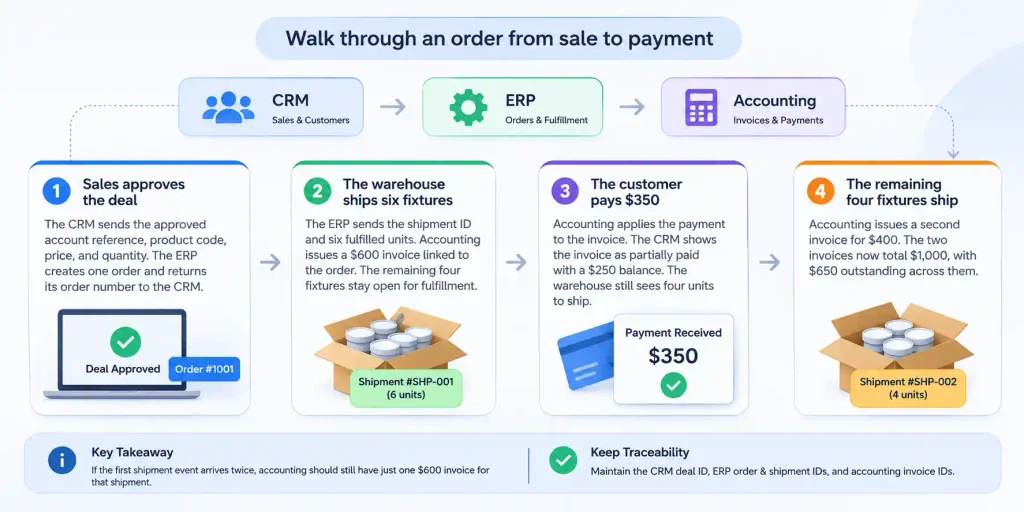
Consider a CRM-ERP integration for a lighting wholesaler that bills by shipment. In this illustrative example, a customer orders ten fixtures at $100 each. The amounts below are product totals before tax and shipping.
- Sales approves the deal. The CRM sends the approved account reference, product code, price, and quantity. The ERP creates one order and returns its order number to the CRM.
- The warehouse ships six fixtures. The ERP sends the shipment ID and six fulfilled units. Accounting issues a $600 invoice linked to the order. The remaining four fixtures stay open for fulfillment.
- The customer pays $350. Accounting applies the payment to the invoice. The CRM shows the invoice as partially paid with a $250 balance. The warehouse still sees four units to ship.
- The remaining four fixtures ship. Accounting issues a second invoice for $400. The two invoices now total $1,000, with $650 outstanding across them.
If the first shipment event arrives twice, accounting should still have just one $600 invoice for that shipment. Keep the CRM deal ID, ERP order and shipment IDs, and accounting invoice IDs available so finance can trace any discrepancy.
6. Test the CRM-ERP integration and roll it out in phases
Test in a sandbox or staging environment with representative records. Walk through a complete order with sales, operations, and finance, then test a duplicate event, a timeout after an invoice was saved, a changed billing address, a partial payment, and a return. For a return against an open invoice, verify that the approved credit workflow updates the balance and that sales sees the revised figure. If you need help verifying these handoffs at the API level, see Dropndot’s software QA and testing services.
Pilot one location, sales team, or product line. Agree on the cutoff for new transactions and who can pause automated writes. If you switch to manual entry during an outage, record those transactions and match them before restarting the sync. Finance should compare eligible shipments with invoice lines and reconcile invoice balances by customer and currency. Checking each record also catches errors that can cancel each other out in a total.
Agree on what the pilot must demonstrate before expanding the CRM-ERP integration. For example, require finance to match every billable shipment and give every open exception an owner. Count manual corrections per order before and during the pilot so you can tell whether the new workflow reduces the work teams were doing by hand.
After launch, track how long records wait to sync, how many need manual review, and whether any shipments are missing invoices. Set alerts based on the time each team can reasonably wait. Give each alert an owner who can investigate it or route it to the right team.
Frequently asked questions
Can CRM-ERP integration work without APIs?
Yes. Scheduled file exchange can work when both applications support imports and exports. Give each export a batch ID and keep the import results with the original file. That gives staff a way to check which rows were applied before resubmitting a corrected file.
Should data sync both ways?
Allow data to travel both ways when the workflow calls for it. For example, treat shipping and billing addresses as separate fields. Decide where each can be edited and make synced copies read-only for teams that only need to view them.
Can an on-premises ERP connect to a cloud CRM?
Yes, if the ERP has a supported connector, gateway, or export interface. Confirm who operates that connection and how it resumes after downtime. Test the handoff from the network where the ERP actually runs.
Do we need to migrate all historical data?
Start by identifying active customers and open transactions required for day-one operations. Keep older records accessible for reference or audit as appropriate. Have finance approve the opening balances and the list of transactions carried forward.
What affects the cost of CRM-ERP integration?
Costs depend on connector subscriptions, transaction volume, custom business rules, data cleanup, testing, and ongoing support. Ask for estimates that include the exception workflow and maintenance as well as the initial connection.
How can sales tell whether invoice status is current?
Show the last successful sync time and flag records once they exceed the agreed update window. When an amount is disputed or stale, send users to the accounting record or the finance team for confirmation.
Conclusion
Scope your CRM-ERP integration around one order you can trace from approval to payment. Bring sales, operations, and finance together to agree on who owns each field and what happens if a handoff fails. If a standard connector leaves gaps, share your workflow and a sample order with Dropndot’s custom software development team.